Meshtastic LongFast vs LongTurbo: Which Preset After Flashing?
Is your new Meshtastic node on LongFast or LongTurbo? Check right after you flash it. On firmware 2.8.1, a US node whose region is first set on its own screen starts on LongTurbo, and LongTurbo can't hear LongFast. If your local mesh uses LongFast, switch to LongFast.
It's an easy one to miss, because the radio looks fine and simply hears nothing. This guide covers what changed, how to check your preset in each app, and how to match the people you want to talk to. We checked it against Meshtastic's Let's talk about 2.8 post, the 2.8.1 release notes on GitHub, the LoRa configuration docs, the radio settings page, and the official Why your new node might not see your local mesh post on Oct 23, 2026.
Quick answer
- Look at the modem preset as soon as the node is set up. It's under the LoRa settings in every app.
- If it says LongTurbo and your local mesh is on LongFast, change it to LongFast. Nothing else needs to change if you kept the default primary channel.
- Not sure what your area runs? Ask the local group, or run Local Mesh Discovery in the Android or Apple app.
- Upgrading an existing node doesn't touch its preset. This only bites new setups and fresh region choices.
What changed in Meshtastic 2.8
Meshtastic's 2.8 post explains the reason. FCC rules for full-power operation at 902–928 MHz set a minimum bandwidth of 500 kHz. LongFast uses 250 kHz. LongTurbo uses 500 kHz, so on 2.8 a new US node starts on a preset that meets that requirement.
The new default only applies in one situation: when you set the region to US on the device screen for the first time. Meshtastic's local-mesh post adds that setting the region from a phone app or the CLI leaves the node on LongFast. So two identical boards set up the same afternoon can end up on different presets, depending on how you set the region.
Meshtastic is also clear that the default doesn't lock you in. You can change the preset at any time.
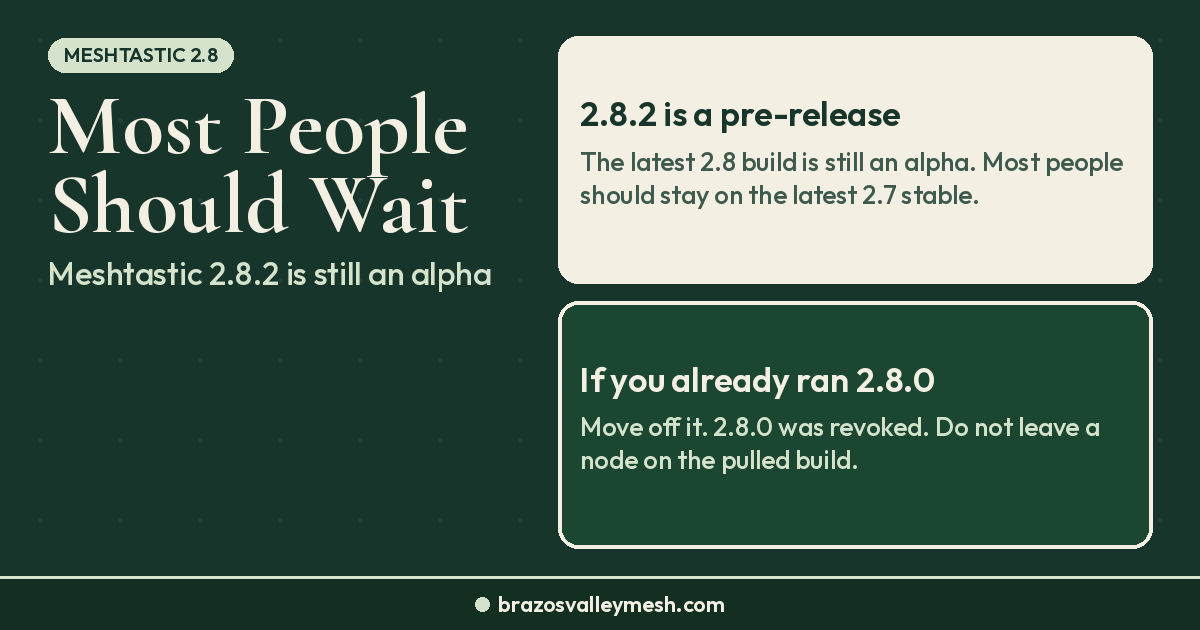
As of Oct 23, 2026, 2.8.1 is still an alpha on GitHub, and 2.7.26 is the newest non-alpha build. Most people aren't on 2.8 yet, but anyone who flashes the alpha onto a new or test board is. Our Meshtastic 2.8 update guide covers whether you should upgrade at all.
Why LongTurbo and LongFast can't hear each other
A preset bundles three radio settings: bandwidth, spreading factor, and coding rate. Two radios only decode each other when all three match. Meshtastic's local-mesh post puts it bluntly: two nodes on different presets don't have a weaker link. They have no link at all, at any distance.
Here's how the two compare, from Meshtastic's radio settings page:
- LongFast: 250 kHz bandwidth, spreading factor 11, coding rate 4/5, about 1.07 kbps, 153 dB link budget.
- LongTurbo: 500 kHz bandwidth, spreading factor 11, coding rate 4/8, about 1.34 kbps, 150 dB link budget.
They also listen on different frequencies. If you haven't renamed your primary channel, the preset name picks the frequency slot. In the US, LongFast sits on slot 20 at 906.875 MHz, and LongTurbo on slot 14 at 908.750 MHz. That's nearly 2 MHz apart, which is why a mismatched node hears nothing instead of hearing poorly.
The LoRa docs describe LongTurbo as performing similarly to LongFast, with wider bandwidth. The 3 dB smaller link budget in the list above is the trade-off. Meshtastic points to Calgary's YYCMesh, which runs nearly the same 500 kHz settings and sees more than 300 nodes on its public channel. Neither preset is wrong. The one your neighbors use is the right one for you.
How to check your preset
- Android: open the Meshtastic app, then go to Settings, then LoRa.
- iPhone, iPad, and Mac: go to Settings, then Radio Configuration, then LoRa.
- Web client: all LoRa settings are in the config pages.
- Python CLI: `meshtastic --get lora.modem_preset` shows it, and `meshtastic --set lora.modem_preset LONG_FAST` changes it.
Make sure Use Preset is on. With it off, the node ignores the preset and uses manual bandwidth, spreading factor, and coding rate instead.
On 2.8, LoRa changes apply without a reboot. After you switch, give it a few minutes and watch the node list.
How to match your local mesh
Ask first. Local groups share the settings they use. If someone gives you a channel QR code or link, scanning it applies the channel and LoRa settings together. Only scan codes from people you trust.
Scan if nobody answers. Local Mesh Discovery in the Android and Apple apps cycles your radio through presets, listens on each, and ranks what it heard. It only sees meshes on the default public channel. An empty scan means nothing is on the public channel near you, not that nothing is there.
Don't rename your primary channel to go private. The primary channel name sets your frequency slot, so renaming it moves you off the slot everyone else uses. Meshtastic says to put private groups on secondary channels 1 through 7, which keep your LoRa settings.
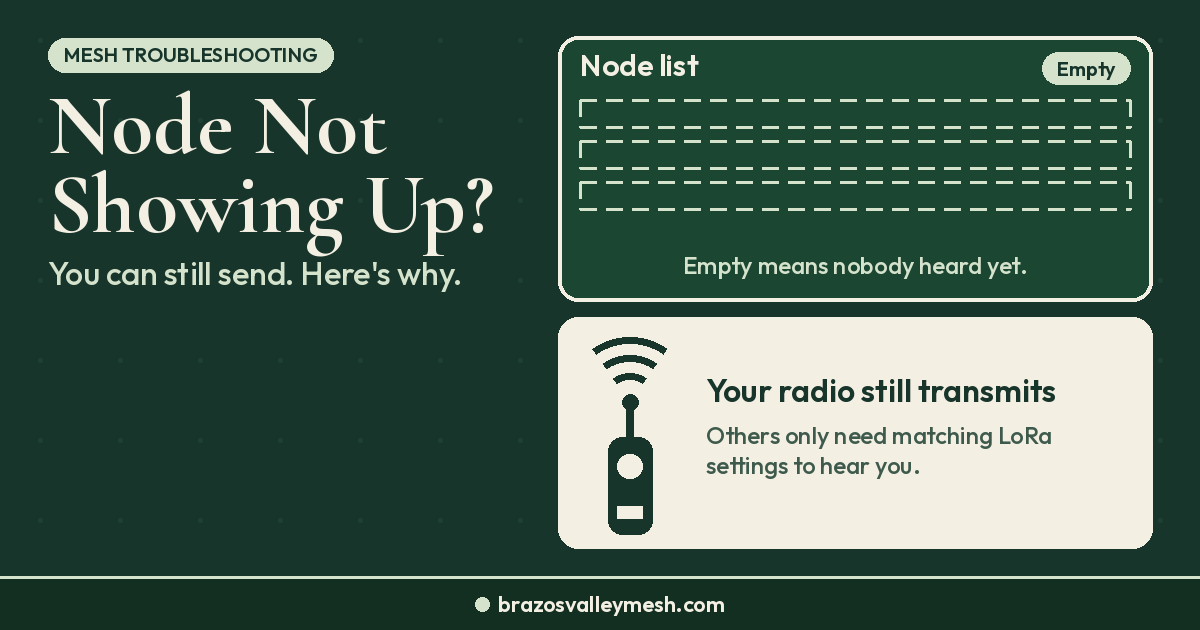
Test with a direct message. A channel message can show as sent when one nearby node repeats it, even if nobody past that node heard it. A direct message is acknowledged by the person you sent it to, so it's the better test. Our post on why a Meshtastic node may not show up but can still send explains how sending works before you've heard anyone.
Old names in your node list don't mean you're connected
If you change presets, every node you heard before stays in your list with its name and last-heard time. It looks reachable, but it may not be. Meshtastic's local-mesh post says 2.8.1 and later record which LoRa settings each node was heard on, so apps can mark nodes you haven't heard on your current settings. If a familiar name won't answer, check the preset before you blame the antenna.
Other settings to check while you're in there
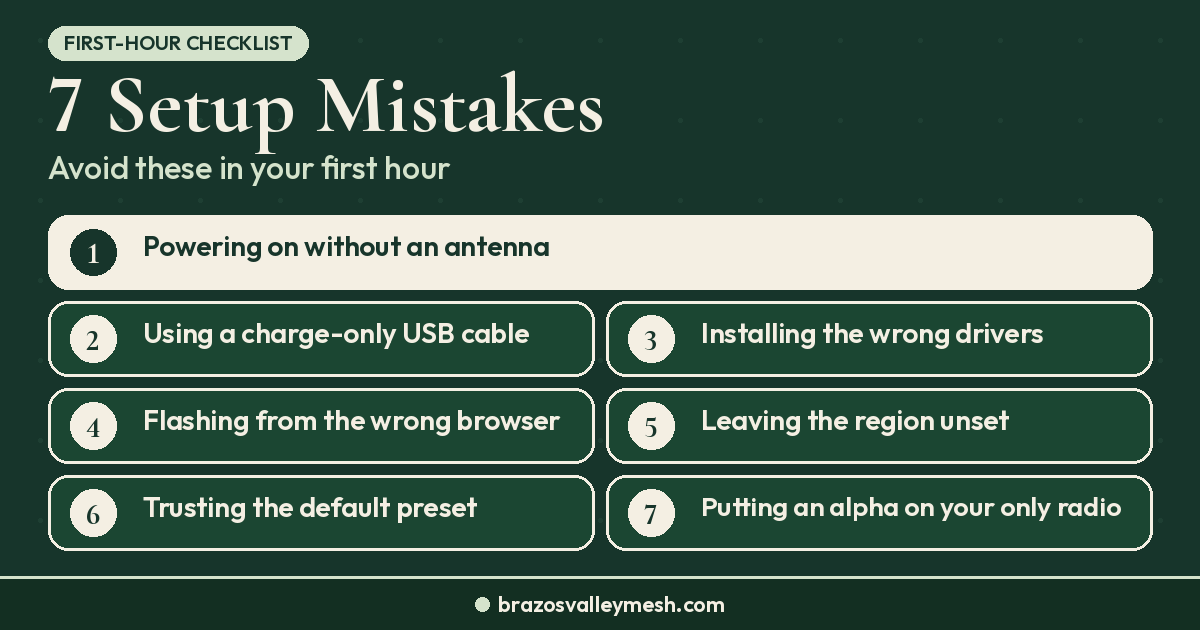
The preset is the big one on 2.8, but it isn't the only setting that has to match. Region must be US, and the primary channel should stay on the default unless your group says otherwise. Our Meshtastic setup mistakes guide walks through the rest of the first-hour checklist. Leave Max Hops at 3, as our Meshtastic hop limit guide explains, and keep a handheld on the CLIENT role, covered in our Meshtastic router vs client guide.
 If you want a spare board to test 2.8.1 on before touching a node people depend on, the Heltec V4 style ESP32 LoRa board on Amazon and the Heltec V4 at Rokland are cheap ways to do it. Check the Meshtastic Web Flasher for your exact board, and check current prices, before you buy.
How this works around Bryan–College Station
Brazos Valley Mesh runs MeshCore, not Meshtastic, so this setting doesn't touch our repeaters. MeshCore and Meshtastic don't talk to each other on the air. MeshCore has its own region presets, and ours is USA/Canada (Recommended), as our MeshCore USA/Canada preset guide explains. Our MeshCore vs Meshtastic comparison covers why we chose MeshCore for a town-scale mesh. If you're joining us, flash MeshCore at flasher.meshcore.io, choose the USA/Canada (Recommended) preset, and confirm your radio settings show it.
If you run Meshtastic around Bryan–College Station, match the Meshtastic users you want to reach. LongFast, the long-standing default, is the usual starting point unless they tell you otherwise. If you flash a new board on 2.8.1 and set the region on its screen, check the preset before you decide the radio is broken.
Want a radio that's ready out of the box? Our Pocket Mesh Node is flashed with MeshCore or Meshtastic, your choice. If you're joining us around Bryan–College Station, we recommend MeshCore. Buying from the Brazos Valley Mesh shop helps fund the local mesh.
FAQ
Should my Meshtastic node be on LongFast or LongTurbo?
Use whatever your local mesh uses. Nodes on different presets can't hear each other. LongFast is the long-standing default, but ask your local group or run Local Mesh Discovery to be sure.
Why did my new Meshtastic node start on LongTurbo?
On 2.8, a US node whose region is first set on the device screen starts on LongTurbo. Meshtastic made that change because FCC rules for full-power operation at 902–928 MHz set a 500 kHz minimum bandwidth, and LongFast uses 250 kHz.
Can LongTurbo and LongFast nodes talk to each other?
No. They use different bandwidths and coding rates, and with the default channel they listen on different frequencies. Meshtastic says nodes on different presets have no link at any distance.
Will upgrading to 2.8.1 change my preset?
No. Meshtastic says upgrading leaves your preset alone. Only first-time region selection on the device screen sets LongTurbo.
How do I switch my Meshtastic node back to LongFast?
Open the LoRa settings in the app, make sure Use Preset is on, and set the Modem Preset to LongFast. In the Python CLI, run `meshtastic --set lora.modem_preset LONG_FAST`.
Is LongTurbo a worse preset?
Not necessarily. Meshtastic's docs say it performs similarly to LongFast, with wider bandwidth and a slightly smaller link budget. A large mesh in Calgary runs nearly the same settings. What matters is matching your neighbors.