Meshtastic Setup Mistakes: 7 to Avoid in Your First Hour
What are the Meshtastic setup mistakes to avoid in your first hour? Never power the radio without an antenna, use a USB cable that carries data, set your LoRa region to US, and match the modem preset your local mesh runs. Skip one and you either risk damaging the radio or end up with a node that stays silent.
Around Bryan–College Station, a lot of the "my new node doesn't work" questions we hear come down to one of these, not bad hardware. This checklist follows the official Meshtastic getting-started docs and current release notes, checked on Oct 20, 2026. If you're still deciding which firmware to run, read our MeshCore vs Meshtastic comparison first. Most of these rules apply to MeshCore too.
Quick answer: the first-hour checklist
- Antenna on before power. Every time, even on USB power.
- Use a data cable, not a charge-only cable.
- Install drivers only if your board needs them. Most nRF52 boards don't.
- Flash from Chrome or Edge. The web flasher only works in those browsers.
- Set region to US. Until you do, the node won't transmit.
- Match your local preset and leave the primary channel name alone.
- Don't put an alpha build on your only radio.
Mistake 1: Powering on without an antenna
The Meshtastic docs put this warning in bold at the top of setup: never power on the radio without attaching an antenna, because doing so could damage the radio chip. A LoRa radio needs an antenna to carry away the energy it transmits. Without one, that energy has nowhere to go.
That applies the moment the board gets power, and USB power counts. Plugging a bare board into a laptop "just to flash it" puts a new radio at risk, because once the firmware boots, it can transmit. Screw the antenna on before the cable goes in.
A few habits that keep you safe:
- Swap antennas with the power off. Unplug USB and switch off or remove the battery before you change antennas.
- Check the connector fit. An SMA antenna on an RP-SMA jack can thread on and still make no center-pin contact. Our SMA vs RP-SMA vs N-type connector guide shows how to tell them apart.
- Built-in antenna? Radios like the SenseCAP T1000-E have the antenna inside the case, so there's nothing to attach.
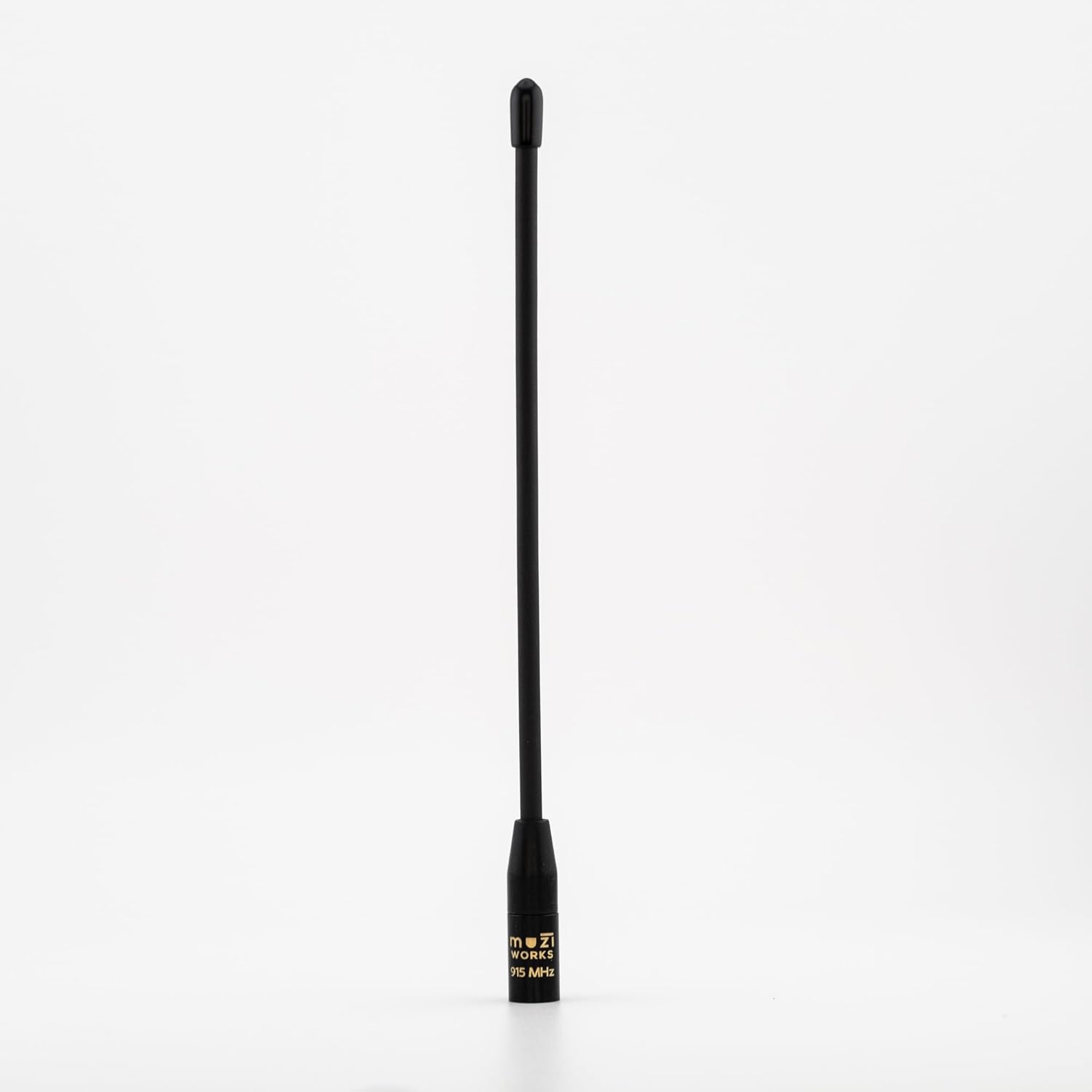
 If your board came with a short stubby antenna, it's fine for a first test. When you're ready for a known-good 915 MHz whip, the Muzi Works 17 cm whip (Amazon) and the Rokland MESHTAC 2.5 dBi whip are the cheap upgrades we point people to. Check your board's connector type before you order.
Mistake 2: Using a charge-only USB cable
Some USB cables only carry power. The radio lights up and charges, but your computer never sees it, and the flasher can't find a port. People lose an evening to this one.
The docs give a simple test: plug the cable into another device, like a phone, and try to copy a file to or from it. If the file copies, the cable carries data. Once you find a good one, label it and keep it with your node.
Mistake 3: Installing drivers you don't need (or skipping the ones you do)
This one depends on the chip in your board.
- nRF52 boards (RAK WisBlock, Seeed trackers, the T1000-E, Heltec T114) and RP2040/RP2350 boards use a UF2 bootloader. In bootloader mode they show up on your computer as a flash drive. The docs say not to download USB drivers for them unless they're needed for UF2 support.
- ESP32 boards (Heltec V3 and V4, T-Beam, T-Deck) may need a USB-serial driver installed before the computer can talk to them. If the port never appears, try a different cable and USB port, then install the driver for your board's USB chip.
Installing random driver packs "just in case" adds confusion and doesn't help an nRF52 board.
Mistake 4: Flashing from the wrong browser
The Meshtastic web flasher needs Chrome or Edge, because it talks to the radio over the browser's serial connection. Firefox and Safari won't show your device. MeshCore's flasher at flasher.meshcore.io has the same requirement.
Mistake 5: Leaving the region unset
This is the most common cause of "it's on, but nothing happens." The docs are clear: to start communicating over the mesh, you must set your region. The region defaults to UNSET until you set it, and the node won't transmit until you do. Messages just sit waiting to send. On the 2.8.1 alpha there's one more reason to do it first: per the release notes, GPS is skipped at startup while the region is unset, to save battery.
In Texas, pick US (902–928 MHz). Where to find it:
- Android app: tap "Set your region" on the connected device card, or go to Settings, then LoRa.
- iPhone, iPad, and Mac: Settings, then Radio Configuration, then LoRa.
- Web client (client.meshtastic.org): the LoRa menu, under Regional Settings.
Mistake 6: Trusting the default preset, or renaming your primary channel
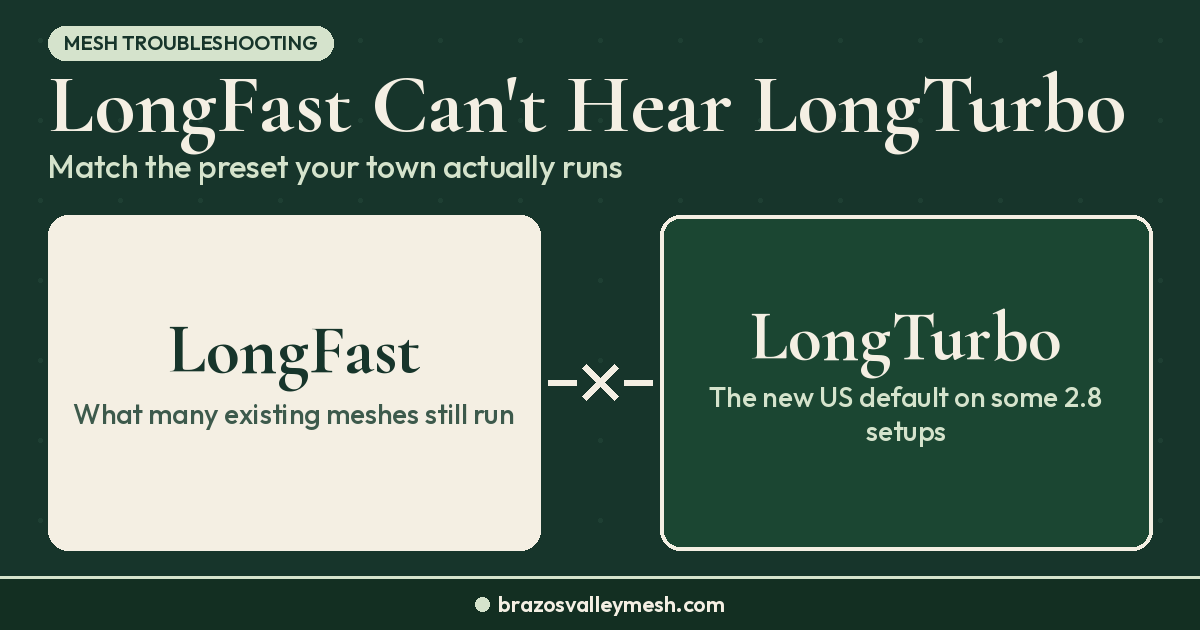
Setting the region leaves your node on a default modem preset. The Meshtastic docs warn that the default isn't always what your local mesh runs, and a node whose settings don't match hears nothing from it. Different presets don't give you a weak link. They give you no link at all.
There's a fresh trap on the 2.8 alpha builds. Per the 2.8.1 release notes, a new US node whose region is set for the first time on the device screen starts on LongTurbo instead of LongFast, and the two can't hear each other. Setting the region from the app or CLI doesn't trigger that default. Whichever preset you land on, switch to the one your local Meshtastic mesh uses. Our Meshtastic 2.8 update has the details, and our LongFast vs LongTurbo guide shows how to check and switch your preset.
Two more settings to leave alone in hour one:
- Primary channel name. With the frequency slot left at its default, the radio picks its frequency from the channel name. Rename the primary channel and you move to a different frequency where nobody else is listening. Put a private group on a secondary channel instead.
- Advanced radio settings like spreading factor and bandwidth. Change those only if your local group asks.
If you've set everything and still see an empty node list, that's usually a range or settings question, not a dead radio. Our guide to why a Meshtastic node isn't showing up walks through it.
Mistake 7: Putting an alpha build on your only radio
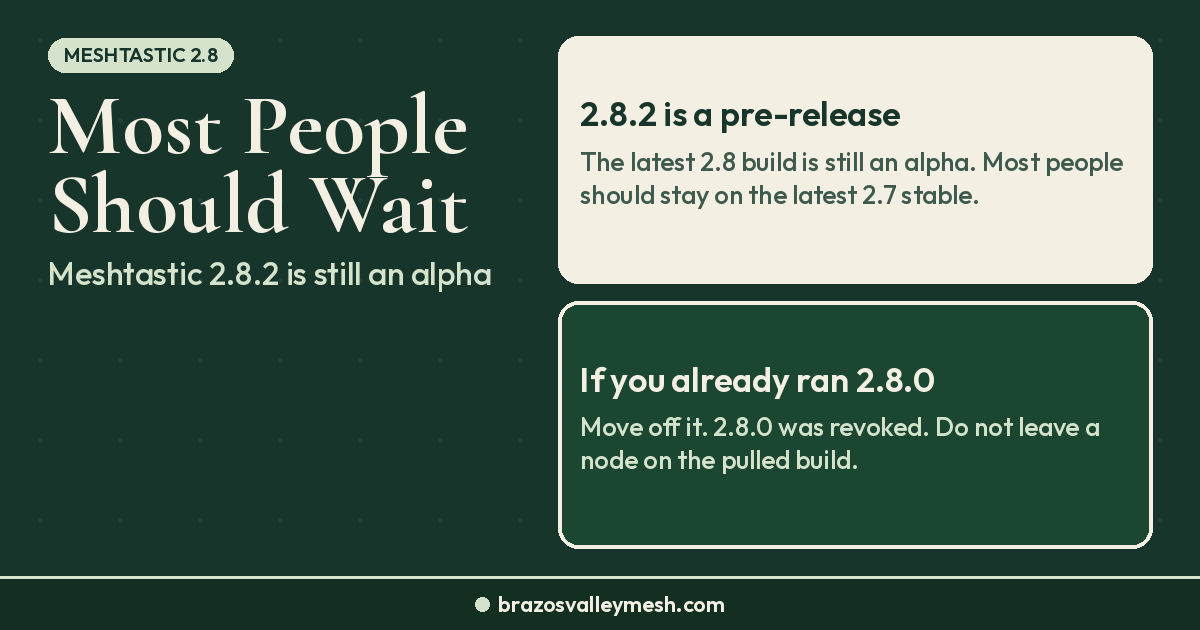
As of Oct 20, 2026, the newest Meshtastic firmware is 2.8.1, posted Oct 1 as an alpha pre-release. The 2.8.0 builds were revoked, and 2.8.1 signatures aren't compatible with 2.8.0. The release notes also recommend a full erase and reflash if you hit a bootloop after upgrading, and suggest exporting your config before you do. If you only own one radio, stick with a beta release (2.7.26 was the newest beta on Oct 20, 2026) and try alphas on a spare.
If you do move to 2.8, your node number changes, so other nodes see you as a new node. Position and telemetry broadcasts are also off until you turn them back on.
What has worked for us around Bryan–College Station
We run MeshCore on the USA/Canada (Recommended) preset here. The first-hour rules are the same on MeshCore: antenna first, data cable, Chrome or Edge on flasher.meshcore.io. Instead of a region and modem preset, MeshCore uses a single radio preset. Pick USA/Canada (Recommended) in the app, then verify it shows 910.525 MHz, SF7, 62.5 kHz, CR5. Our USA/Canada MeshCore preset guide shows what "right" looks like.
Once the radio is set up, send something. Our first MeshCore message guide gets you from a flashed board to an on-air text. If you want the bigger picture of how messages hop between radios, start with Mesh Network 101.
 Still shopping for a first radio? The Seeed Wio Tracker L1 Pro (Amazon) (Seeed Studio) is an easy first companion, and our first MeshCore node under $70 post compares it with other options. We don't quote prices here, so check the listing before you buy.
Want to skip flashing entirely? Our Pocket Mesh Node is flashed with MeshCore or Meshtastic, your choice. If you're joining us around Bryan–College Station, we recommend MeshCore. Buying from the Brazos Valley Mesh shop helps fund the local mesh.
FAQ
What are the most common Meshtastic setup mistakes?
Powering on without an antenna, using a charge-only USB cable, leaving the LoRa region unset, and running a different modem preset than your local mesh. The first can damage the radio. The others leave it silent or invisible to your computer.
Can powering on without an antenna damage a Meshtastic radio?
Yes. The Meshtastic docs warn that powering on without an antenna attached could damage the radio chip. Attach the antenna before any power source, including USB, and swap antennas only with the power off.
Why won't my Meshtastic node send messages?
Most often the region is still unset. The node won't transmit until you set it, which in the US means picking US in the app's LoRa settings. If the region is set, check that your modem preset matches your local mesh.
Why doesn't my computer see my node when I plug it in?
Usually it's a charge-only cable. Test it by copying a file to a phone. If the cable is fine, ESP32 boards may need a USB-serial driver, and the web flasher only works in Chrome or Edge. nRF52 boards normally need no driver.
Should I install the newest Meshtastic firmware on a new node?
Not if it's an alpha and this is your only radio. As of Oct 20, 2026, 2.8.1 is an alpha pre-release. Use the newest beta instead, and test alphas on spare hardware.
Do these mistakes apply to MeshCore too?
Mostly yes. The antenna, data cable, and Chrome or Edge rules are the same. Instead of a region, MeshCore needs the right radio preset, which around Bryan–College Station is USA/Canada (Recommended).